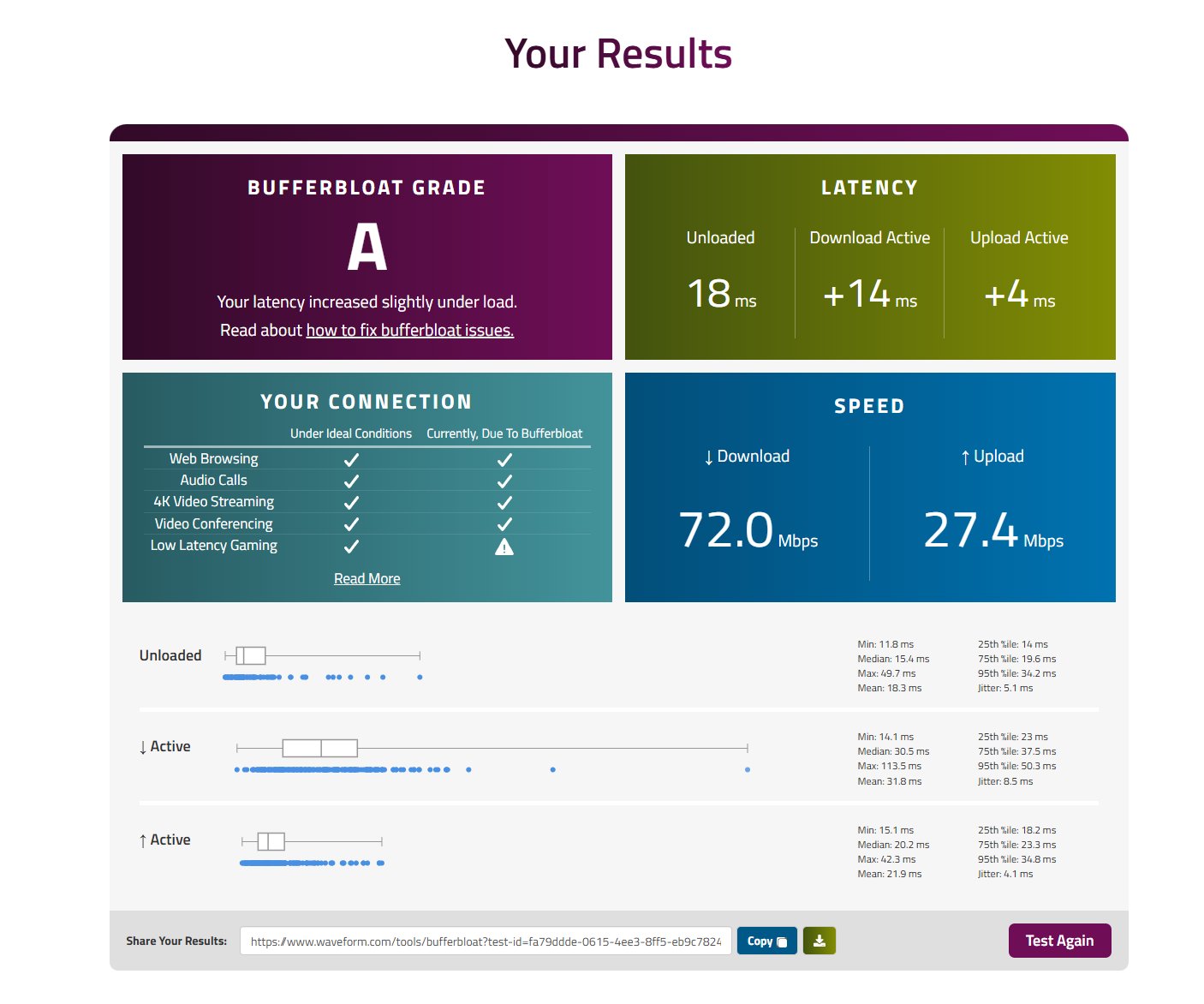
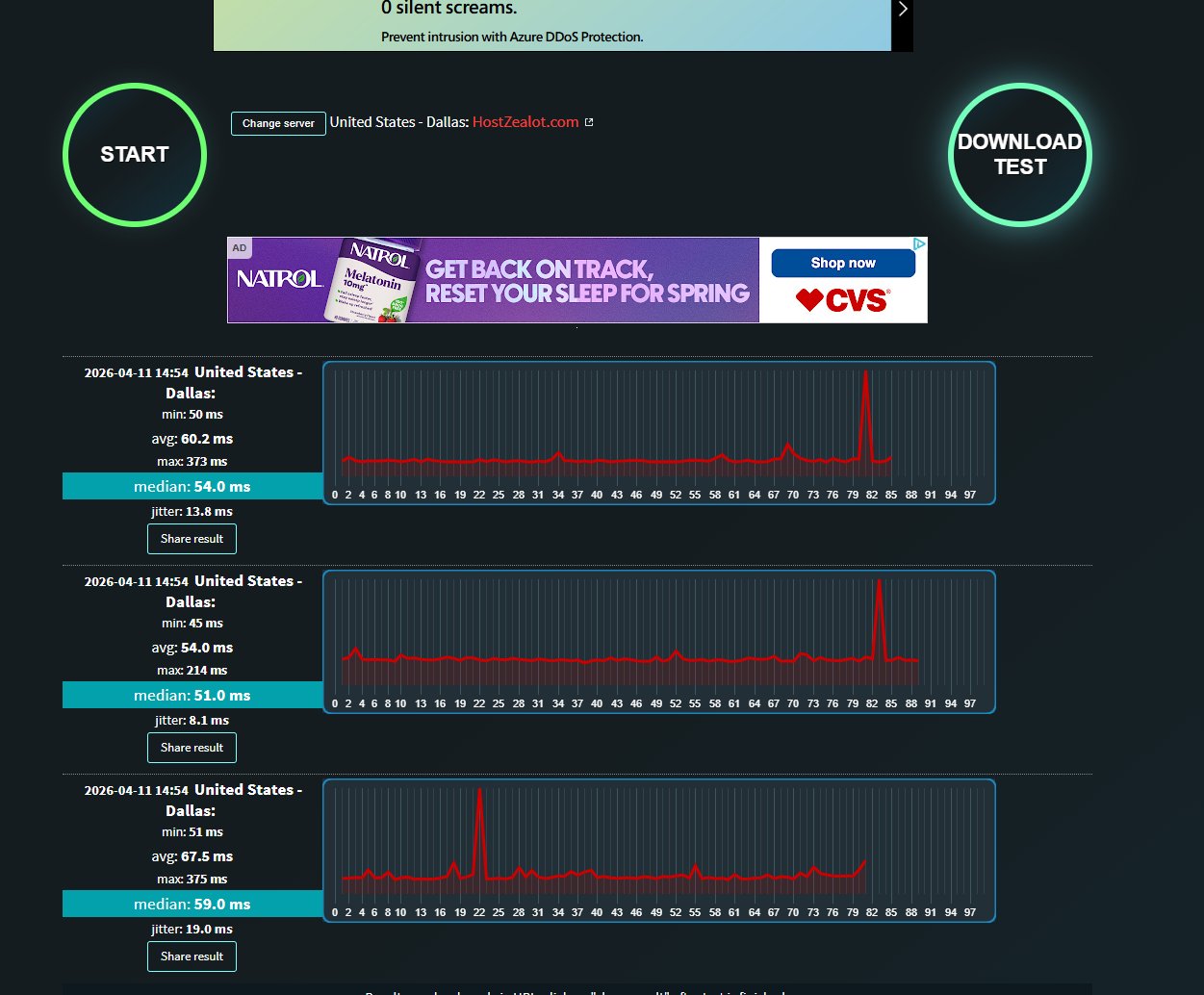
Gaming lag is one of those problems where the obvious metrics lie to you. My speed test said 220 Mbps down. My median ping to a Dallas server was 51ms. By every measurement people normally cite, my connection was fine. It also felt awful — every few minutes a ping spike to 300+ms would ruin whatever I was doing.
This is the story of figuring out why, and the fix that finally got me from a Bufferbloat Grade C to a Grade A. The short version: stock router QoS is broken, the real culprit was bufferbloat, and the answer was an old TP-Link router I had in a drawer running OpenWrt as a dedicated SQM device.
The Setup
- ISP: Comcast/Xfinity, ~220 Mbps down / 42 Mbps up
- Modem/router from ISP: set to bridge mode (verified working — no double NAT)
- Router: TP-Link Archer BE600 (BE9700 Tri-Band Wi-Fi 7)
- PC Wi-Fi: Intel Wi-Fi 6 AX201 160MHz
- PC connection: Wi-Fi only — desktop is under a desk and can't easily be wired
The relevant constraint here is the last one: I can't pull ethernet to the PC, so anything I fix has to work over Wi-Fi.
The Diagnostic Process
The methodology I followed: ping the router first (Wi-Fi link only), then ping an external server (full path), then traceroute (routing layer), then a bufferbloat test (under load). Each step isolates a different layer. If you skip ahead, you end up "fixing" the wrong thing.
Step 1: Ping the Router
ping -n 100 192.168.0.1
Result: 2% packet loss, max 23ms, two request timeouts. Wi-Fi link has minor instability but nothing dramatic. The local link wasn't the main problem.
Step 2: Ping an External Server
ping -n 100 8.8.8.8
Result: 12% packet loss, 11 consecutive timeouts (an ~11-second dropout), spikes to 84ms. Much worse than the local ping — that's the signature of something happening past the router, on the ISP side.
Step 3: Traceroute to Rule Out Double NAT
tracert -d 8.8.8.8
Result: Only one private IP (192.168.0.1) before public hops. The ISP modem is correctly bridged. Confirmed Comcast infrastructure (68.85.x, 162.151.x, 96.108.x hops). No double NAT, so I could rule out one of the more common gaming-lag culprits.
Step 4: Check Active Connections
netstat -b -n | findstr ESTABLISHED
Result: All normal connections (Google, Microsoft, Akamai). Nothing suspicious eating bandwidth. Not the problem.
Step 5: Check Wi-Fi Signal Quality
netsh wlan show interfaces
5 GHz:
- Signal: 81% / RSSI: -62 dBm (okay but not great for gaming — you want -50 or better)
- Band: 5 GHz, Channel 40
- Radio type: 802.11ax
- Receive rate: 288 Mbps, Transmit rate: 115 Mbps
The asymmetric rates were a tell — that pattern usually indicates signal quality issues. The receive side was getting through fine but the transmit side was struggling.
2.4 GHz:
- Signal: 90% / RSSI: -46 dBm (much stronger)
- But slower throughput overall (~67 Mbps vs ~72 Mbps on 5 GHz)
Step 6: Scan Neighboring Networks
netsh wlan show networks mode=bssid
- Channel 1: 2 neighbor networks
- Channel 3: 3 networks (including mine — bad, overlapping channel)
- Channel 6: empty
- Channel 11: 2 networks
The router had auto-selected channel 3 on 2.4 GHz, which overlaps with channels 1 and 6. The only non-overlapping channels on 2.4 GHz are 1, 6, and 11. Channel 6 was wide open and the router had ignored it.
Step 7: Bufferbloat Test (Before Fix)
I ran the Waveform bufferbloat test — this is the test that finally surfaced the real problem.
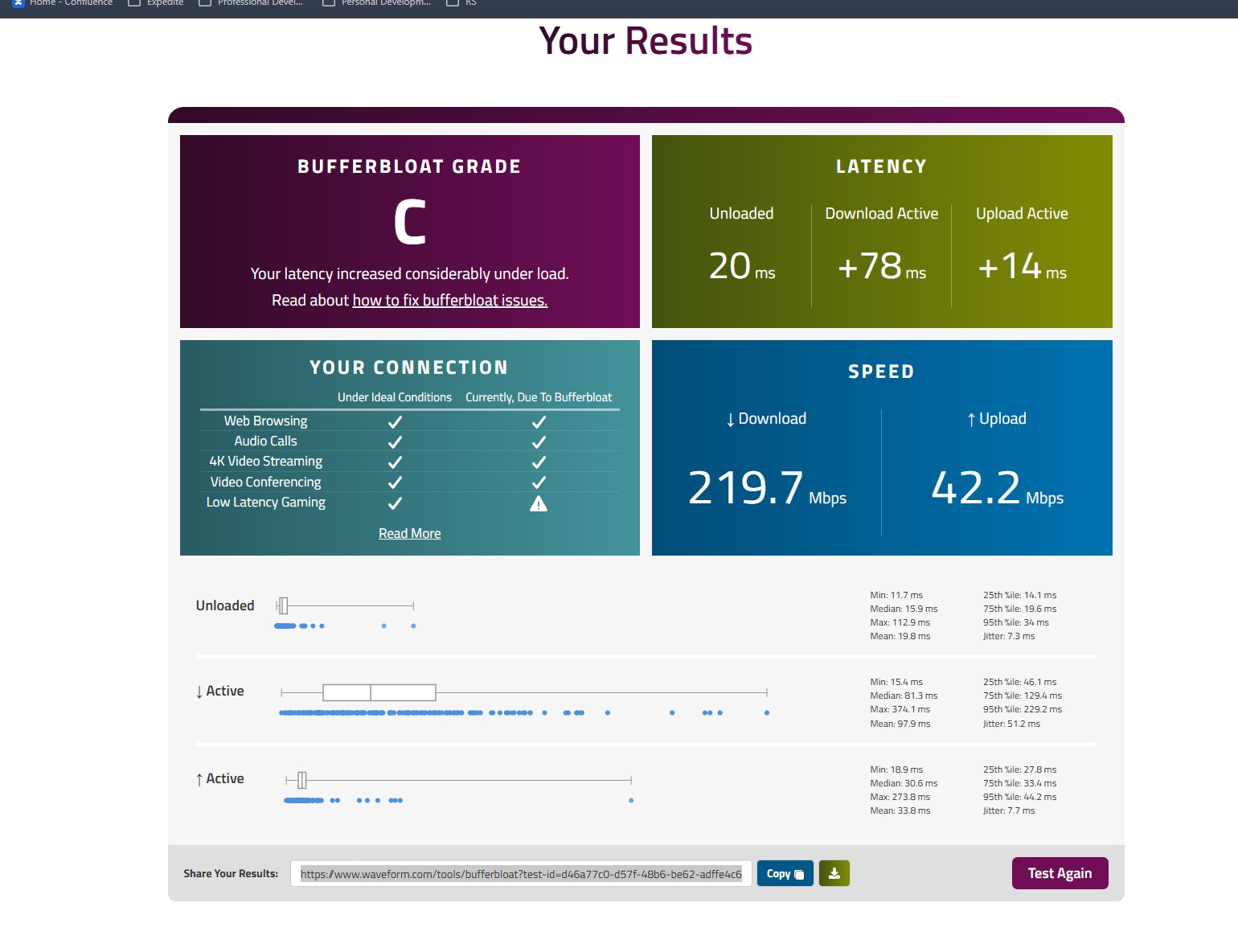
Grade C:
- Unloaded: 20ms
- Download Active: +78ms (median 81ms, max 374ms)
- Upload Active: +14ms
- Speed: 219.7 Mbps down / 42.2 Mbps up
- Low Latency Gaming: warning flag
There it is. When the connection is idle, latency is fine. When it's under load — even briefly — latency spikes 4x and occasionally hits 374ms. That's the bufferbloat signature, and it perfectly matches what I was experiencing in games.
Root Causes
- Bufferbloat (primary). When the connection is loaded — downloads, streaming, even a speed test — the modem buffers fill up and latency spikes from 20ms to 100-374ms. Classic.
- Wi-Fi signal at -62 dBm on 5 GHz. PC under a desk, 2% packet loss to the router, occasional spikes. Not catastrophic but contributing.
- Suboptimal Wi-Fi channels. Router auto-selected 5 GHz channel 40 and 2.4 GHz channel 3 (overlapping, non-standard).
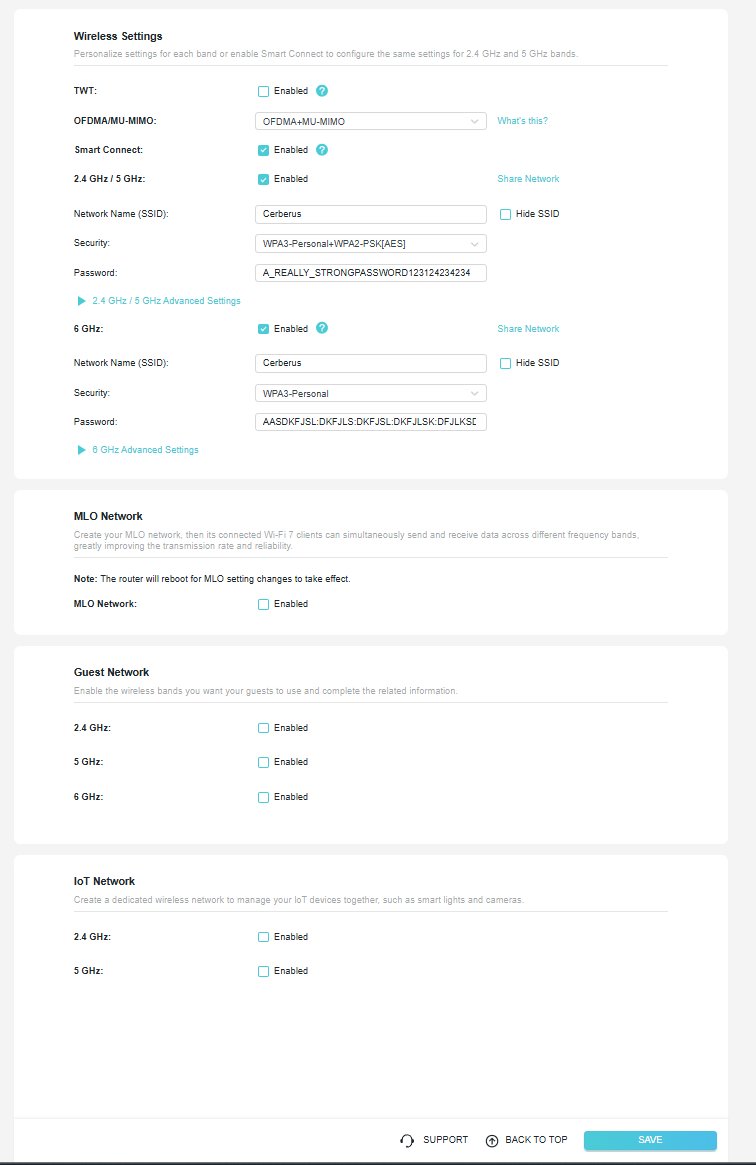
- Smart Connect enabled. The router could switch bands mid-session, causing momentary lag.
Fix 1: Wi-Fi Channel Optimization
Before tackling the bufferbloat, I cleaned up the Wi-Fi configuration so I could measure the real bufferbloat impact without Wi-Fi instability muddying the results.
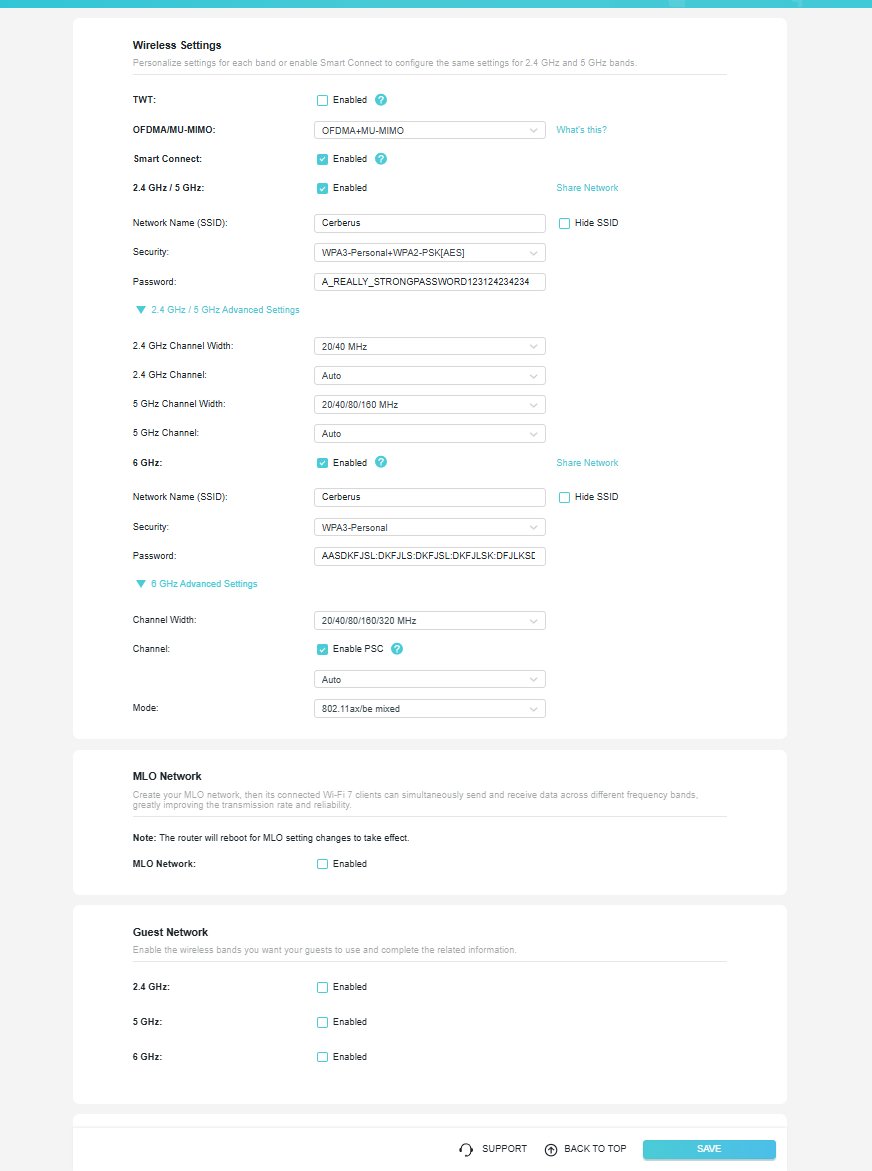
Original Wireless Settings
Accessing Advanced Channel Settings
Attempting Channel 36 at 160 MHz (DFS Warning)
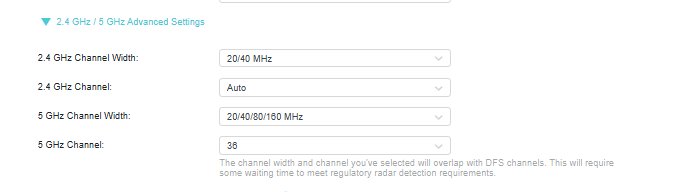
The warning appeared because 160 MHz width at channel 36 extends into the DFS (Dynamic Frequency Selection) range. DFS channels can force the router to temporarily shut down the radio if radar is detected — bad for gaming, where any unexpected radio downtime is a problem.
Channel 36 at 80 MHz — No Warning
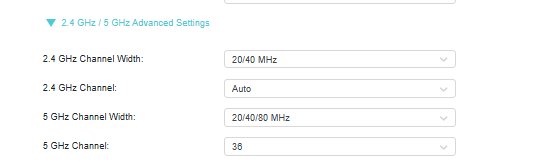
Final Wi-Fi changes:
- 5 GHz channel: Auto (landed on 40) → channel 36 (non-DFS, clean)
- 5 GHz channel width: 20/40/80/160 MHz → 20/40/80 MHz (160 MHz extends into DFS range and is less stable)
- 2.4 GHz channel: Auto (landed on 3) → channel 6 (completely empty, stick to non-overlapping 1/6/11)
- Smart Connect: disabled for testing, later re-enabled for household simplicity. The PC was set to prefer the 5 GHz band via Windows Device Manager.
This bumped the bufferbloat grade from C to B on its own. Better, but still not where I wanted it. The actual bufferbloat problem was untouched.
Fix 2: SQM/CAKE via OpenWrt on an Old Router (The Big Fix)
The BE600's built-in QoS is broken in a specific and frustrating way. TP-Link's newer Wi-Fi 7 routers (BE800, BE550, BE400, BE600) all have a known issue where enabling QoS actually makes bufferbloat worse, not better. There's no SQM or CAKE support in the stock firmware. The "QoS" you get is basic device-priority queuing, which doesn't address bufferbloat at all.
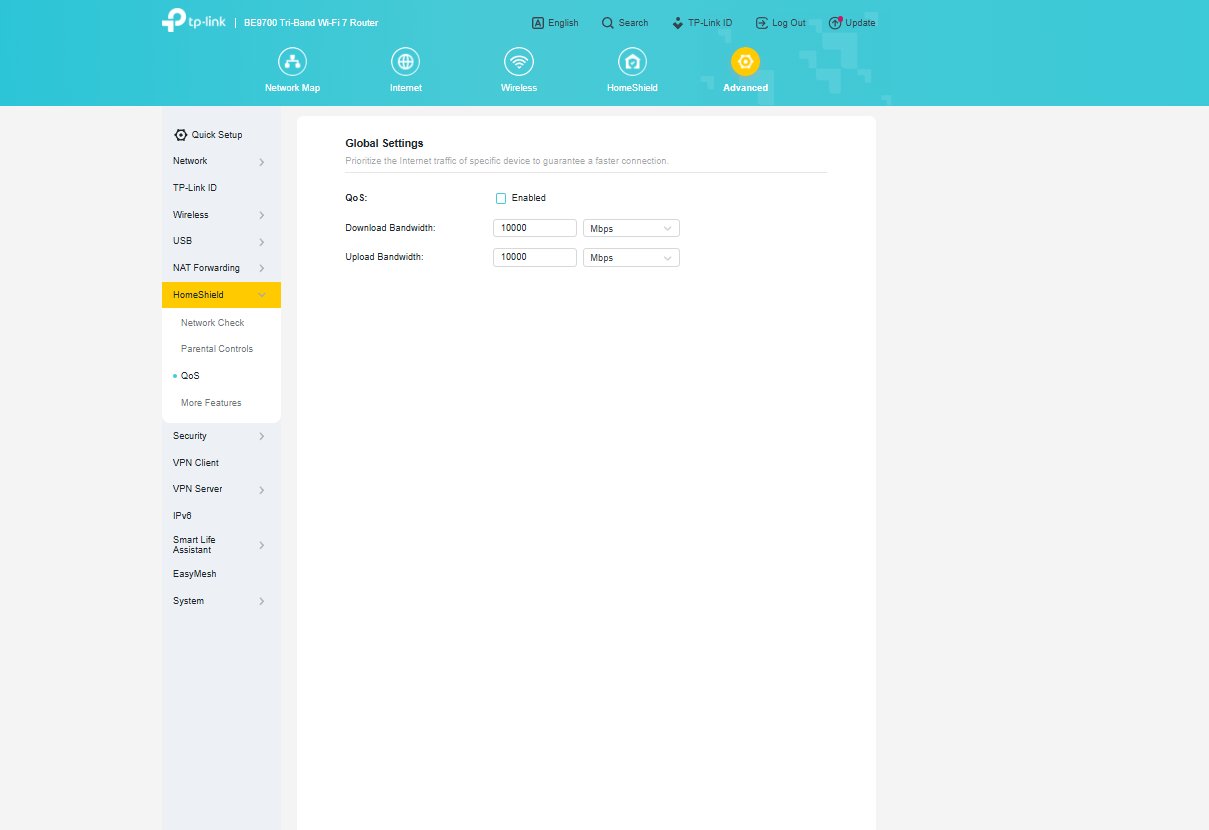
The real fix for bufferbloat is SQM (Smart Queue Management) using a queue discipline like CAKE or fq_codel. This requires either OpenWrt or a router that supports it natively. The BE600 doesn't, and there's no OpenWrt port for it.
So I went looking for a solution that didn't involve buying new hardware, and remembered I had an old TP-Link Archer A7 v5.0 (AC1750) sitting in a drawer. The plan: flash OpenWrt onto the A7 and use it as a dedicated SQM device sitting between the modem and the BE600. The BE600 stays in place handling Wi-Fi — the A7 invisibly handles routing and queue management.
Hardware note: The Archer A7 and Archer C7 are essentially the same hardware (same CPU, RAM, chipset) sold under different names. They require different firmware images though — the C7 image on A7 hardware gives an "Invalid file type" error, which is the first thing I ran into.
Flashing OpenWrt on the Archer A7 v5
First attempt — wrong firmware image:
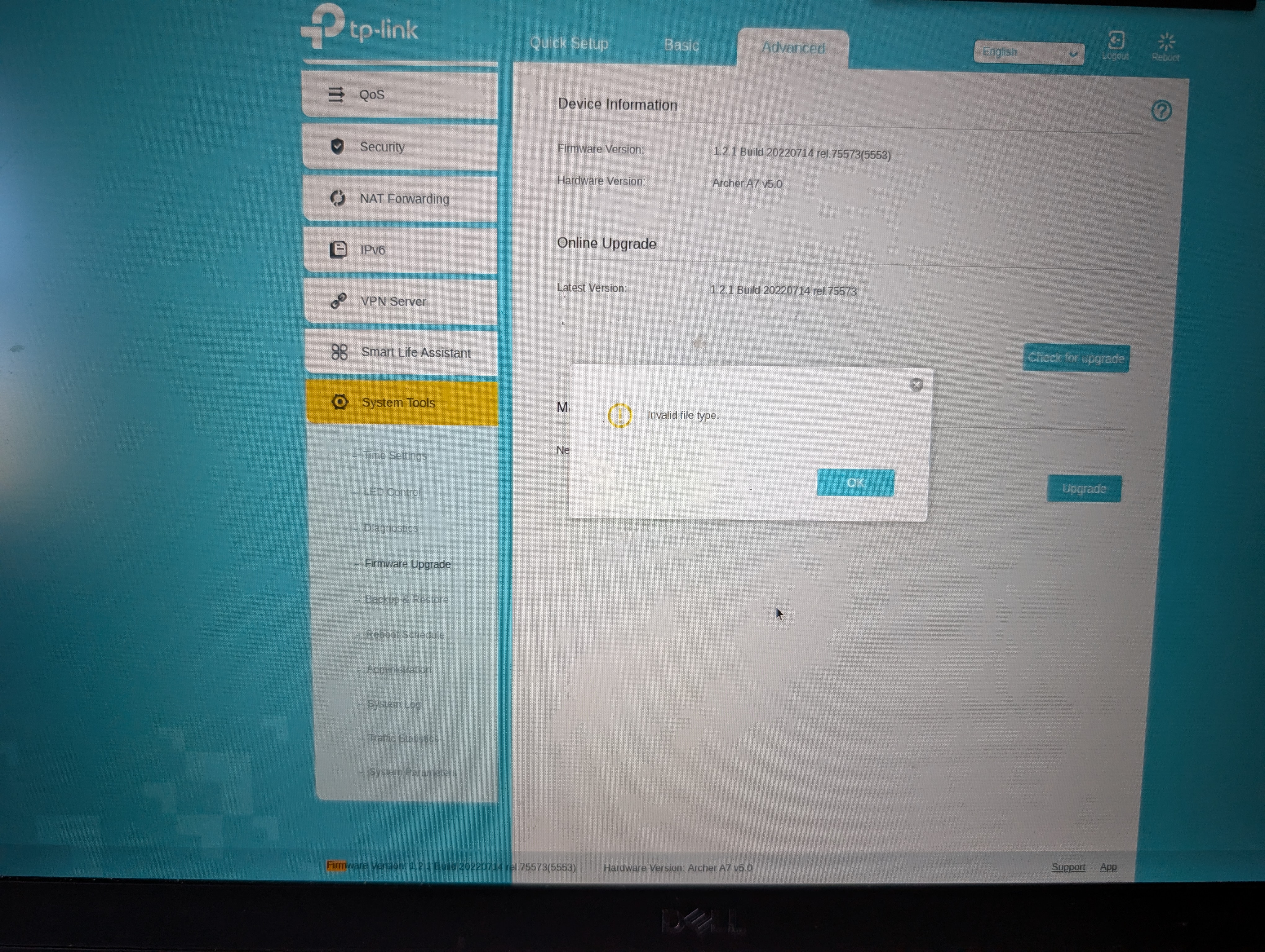
The router identified itself as "Archer A7 v5.0" in the firmware page, not C7. Different firmware headers are required.
Successful flash:
- Downloaded
openwrt-25.12.2-ath79-generic-tplink_archer-a7-v5-squashfs-factory.bin - Renamed to
firmware.bin(stock firmware rejects long filenames) - Uploaded via stock firmware's System Tools → Firmware Upgrade page
- OEM firmware was 1.2.1 Build 20220714 — accepted OpenWrt without issues
Troubleshooting During OpenWrt Setup
OpenWrt installed cleanly. Then everything went sideways for an hour.
Problem 1: "Operation not permitted" when updating packages.
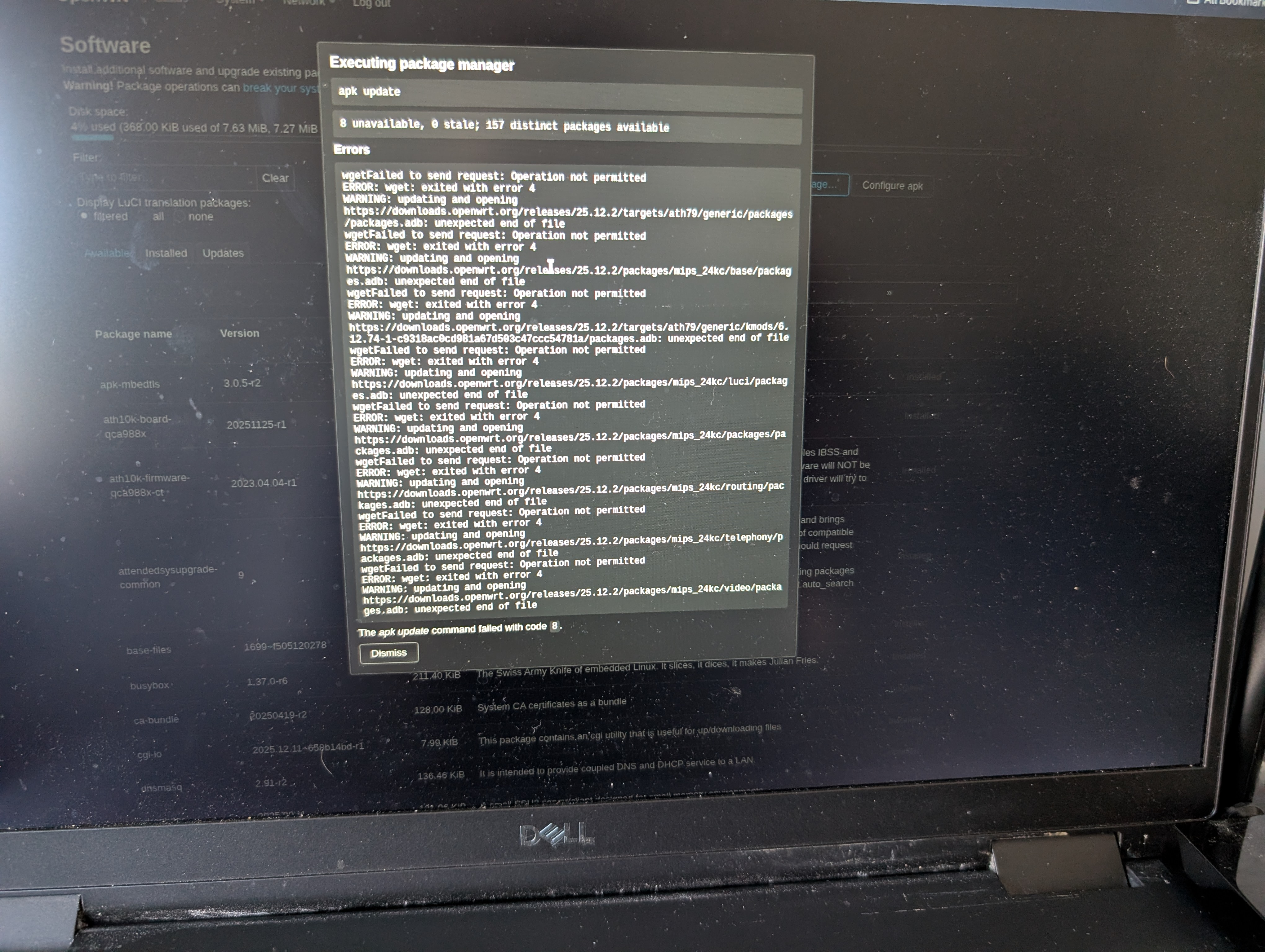
The A7 wasn't connected to the internet yet. I plugged the modem into the A7's WAN port, but the WAN interface had no IP:
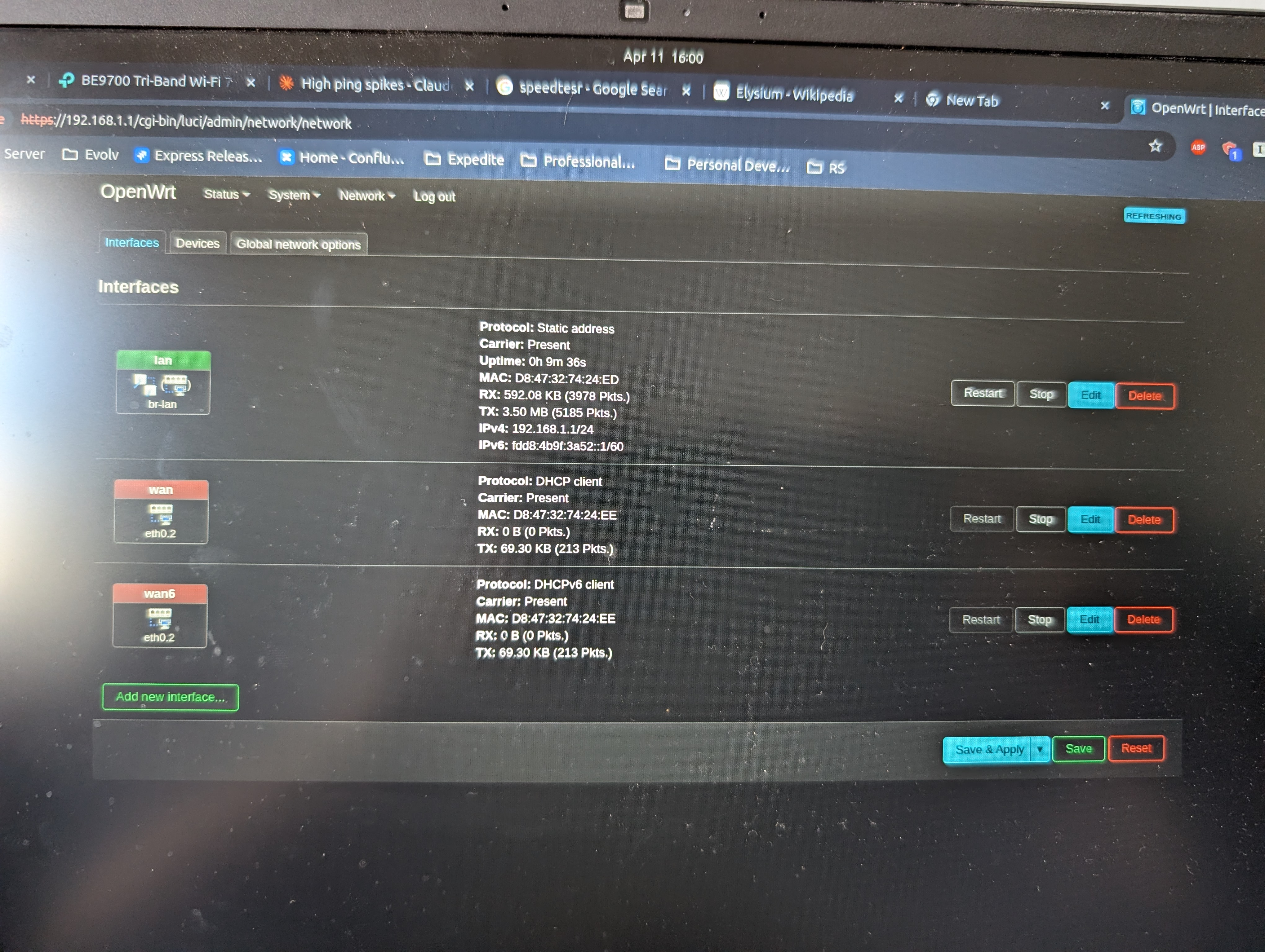
Fix: power-cycle the modem so it would assign a fresh DHCP lease to the A7's MAC address. ISP modems often hold onto the previous client's lease until forced to release it.
Problem 2: "wgetSSL verify error: unknown error"
After getting internet, SSL certificate validation failed:
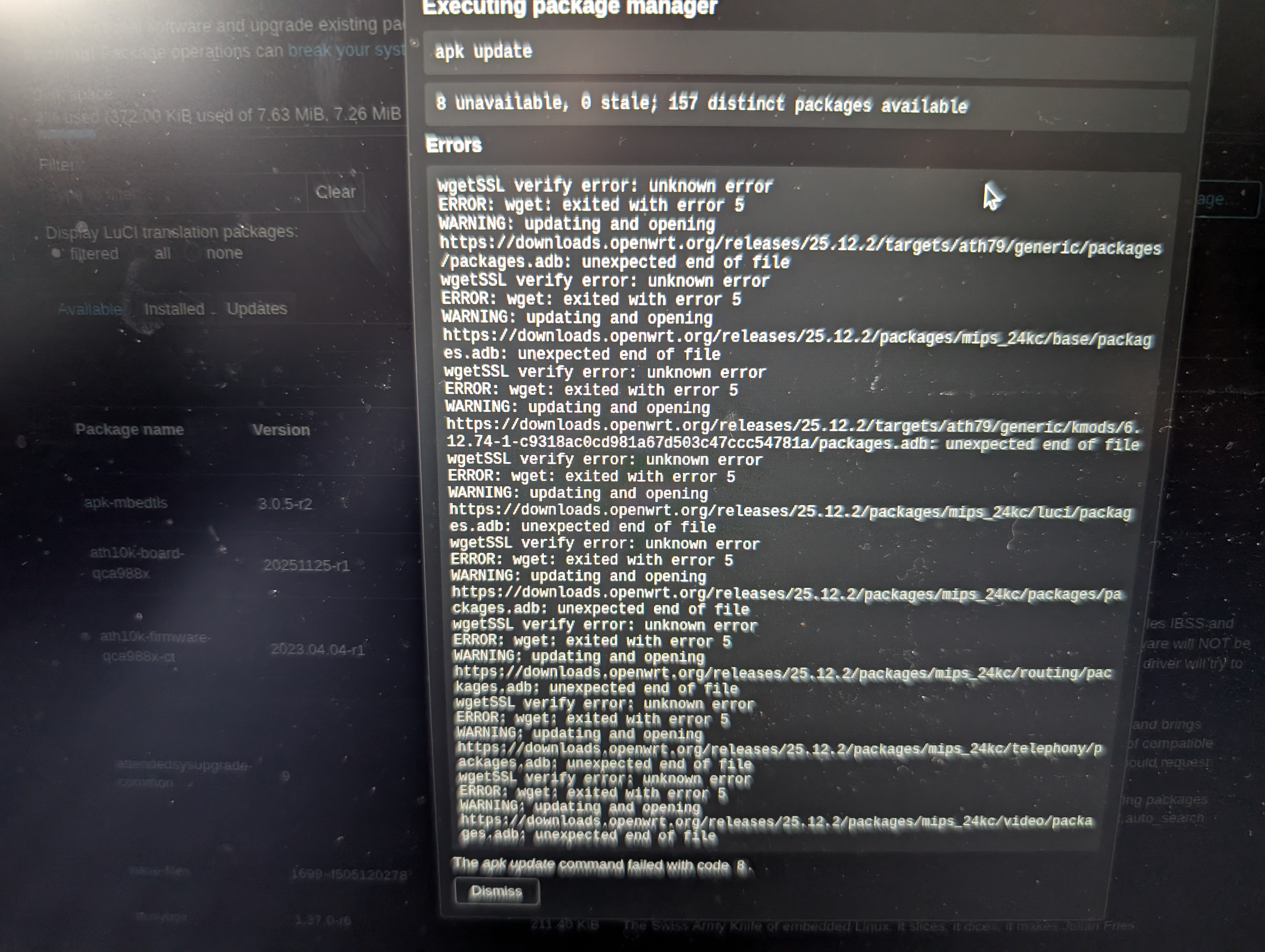
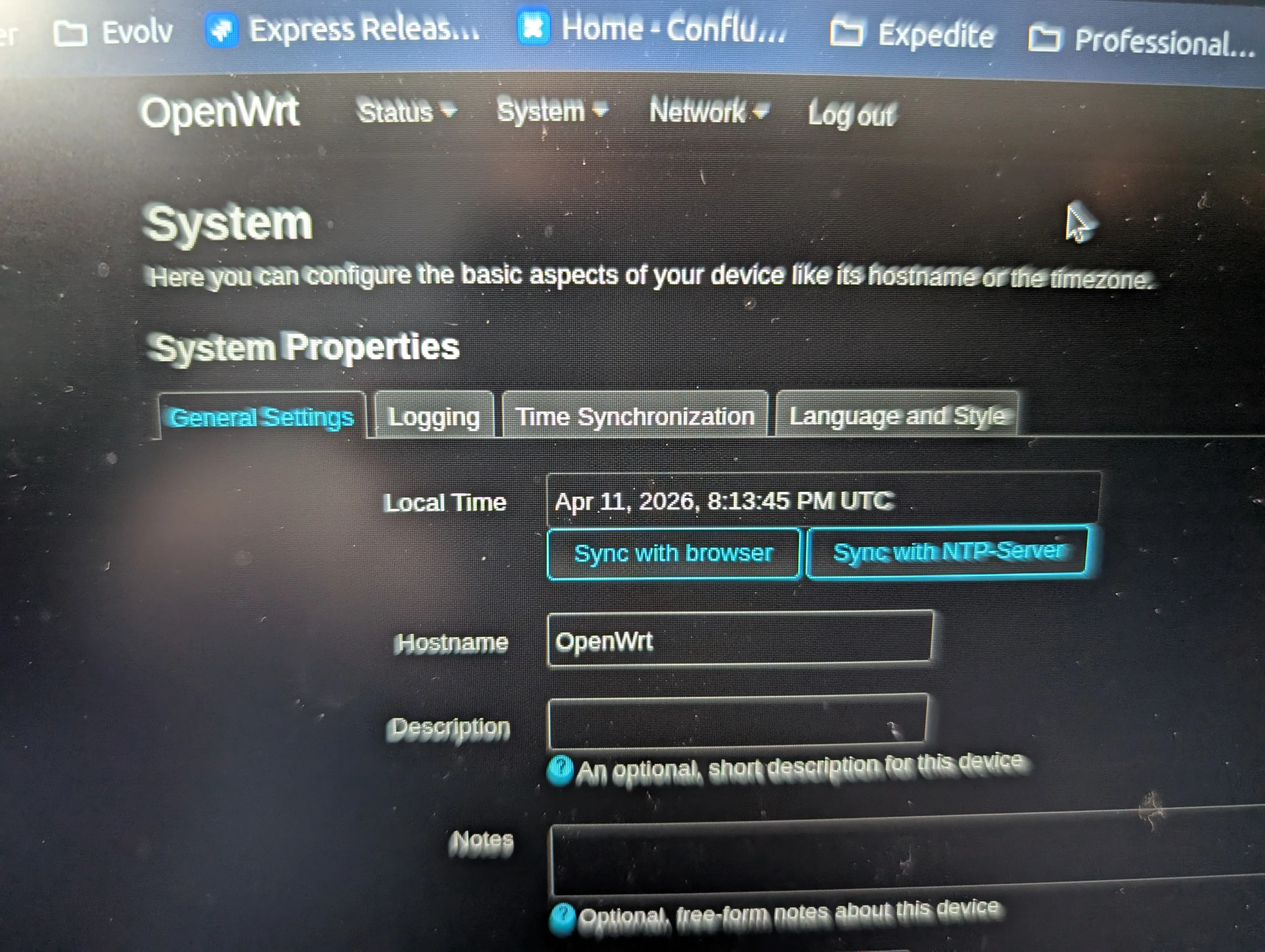
The router clock was wrong (fresh install — no NTP yet). When the clock is wrong, every certificate looks expired or not-yet-valid. Fix: sync the time from the browser:
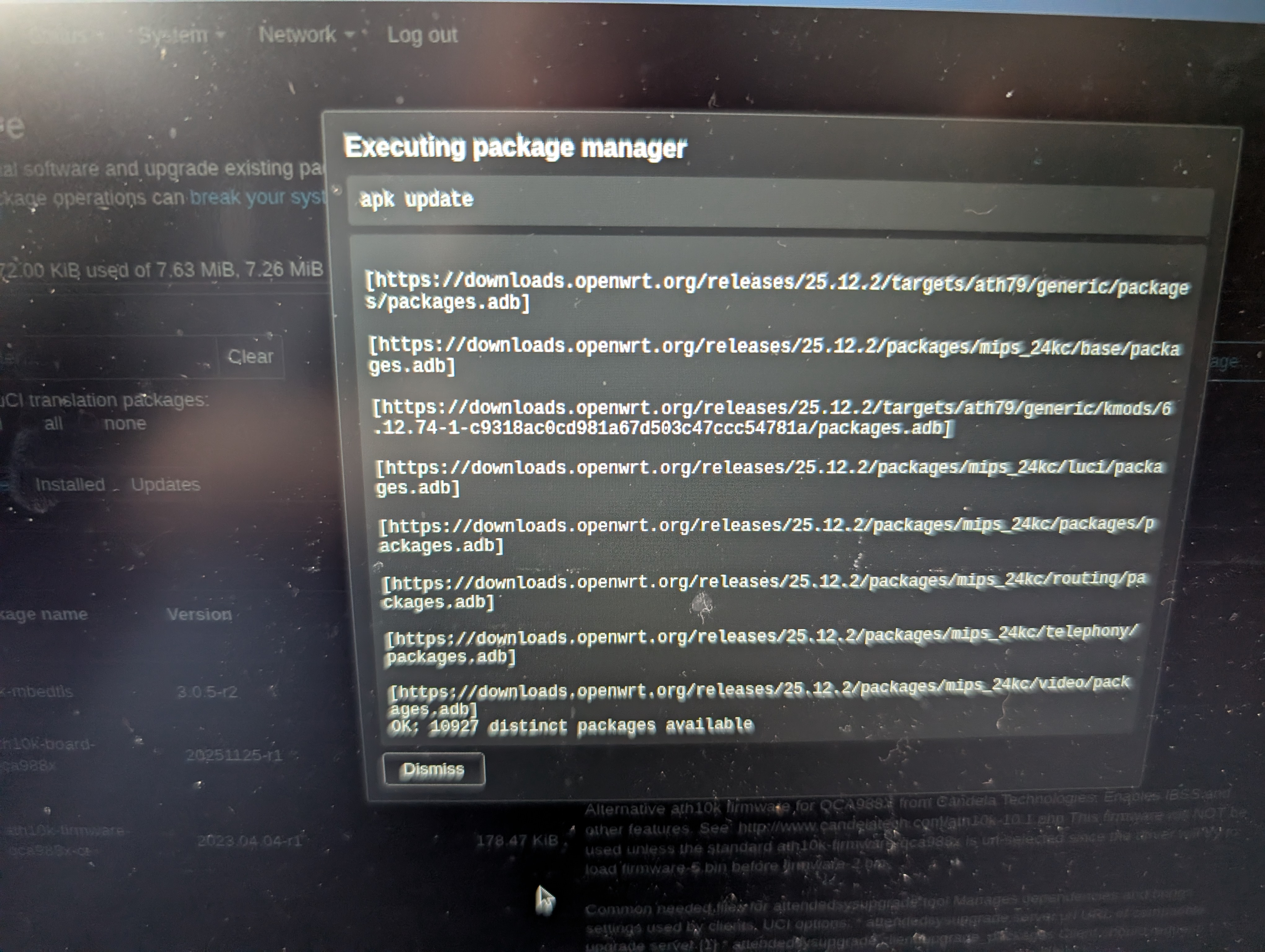
Problem 3: Packages finally updating successfully
Problem 4: SQM wasn't actually running after the initial config.
This one took the longest to catch. I'd configured SQM through the LuCI web interface and the page said it was set up. But the test results barely improved. Eventually I checked the actual config and found enabled='0' and the wrong interface name (eth1 instead of eth0.2). The web UI had silently saved a broken config. I verified with tc -s qdisc show — no CAKE entries meant SQM was inactive regardless of what the web UI claimed.
SQM Configuration
I dropped to the CLI to set the values directly:
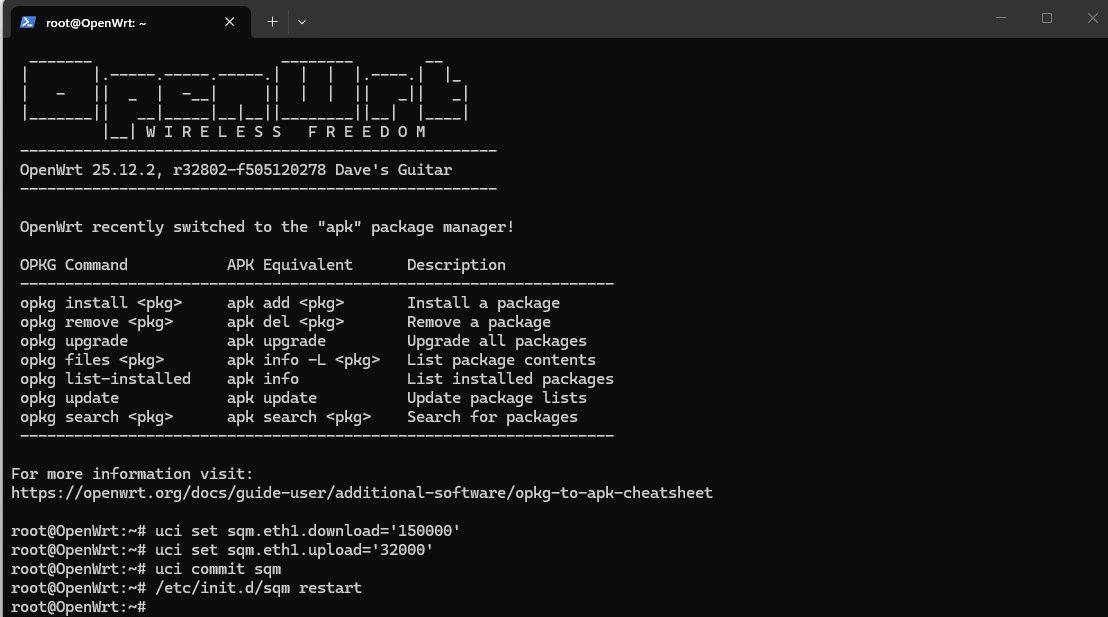
uci set sqm.eth1.enabled='1'
uci set sqm.eth1.interface='eth0.2'
uci set sqm.eth1.download='120000'
uci set sqm.eth1.upload='32000'
uci set sqm.eth1.qdisc='cake'
uci set sqm.eth1.script='piece_of_cake.qos'
uci set sqm.eth1.linklayer='ethernet'
uci set sqm.eth1.overhead='44'
uci commit sqm
/etc/init.d/sqm restart
- Interface:
eth0.2(WAN on the A7) - Download: 120000 kbit/s (~55% of 220 Mbps — limited by the A7's CPU, not the link)
- Upload: 32000 kbit/s (~76% of 42 Mbps)
- Queue discipline: CAKE with
piece_of_cake.qos - Link layer: Ethernet with 44 bytes overhead (correct for cable internet)
The 55% download cap is the price of using a router with a single-core 720MHz CPU as an SQM device. CAKE is CPU-intensive and the A7 maxes out around 120 Mbps. More on that in the tradeoffs section.
Verifying SQM Is Actually Running
After the silent-broken-config experience, I verified everything explicitly:
# Check for CAKE qdisc entries
tc -s qdisc show
# Should show CAKE with packet counts, not just noqueue/fq_codel

# Check config
uci show sqm

# Check service status
/etc/init.d/sqm status

# Monitor CPU during a speed test
top
# or
cat /proc/loadavg
If tc -s qdisc show doesn't show CAKE entries, SQM isn't running, period. Don't trust the web UI to tell you the truth.
Physical Wiring
Comcast Modem (bridge mode) → A7 WAN → A7 LAN → BE600 WAN → all Wi-Fi devices
The A7 sits invisibly between the modem and the BE600. All devices connect to the BE600's Wi-Fi as before. The A7 handles routing and SQM, the BE600 handles Wi-Fi, and from the user perspective nothing has changed except that bufferbloat is gone.
Fix 3: Windows Wi-Fi Band Preference
This one's a one-liner: Device Manager → Intel Wi-Fi 6 AX201 → Properties → Advanced → Preferred Band → 5 GHz.
This keeps the gaming PC on 5 GHz even with Smart Connect re-enabled on the router. Without it, the PC could end up roaming to 2.4 GHz at random.
Tuning Process
Getting to Grade A took several attempts because of the silent-broken-config issue plus general dial-it-in iteration.
Attempt 1: SQM not actually running (Grade B)
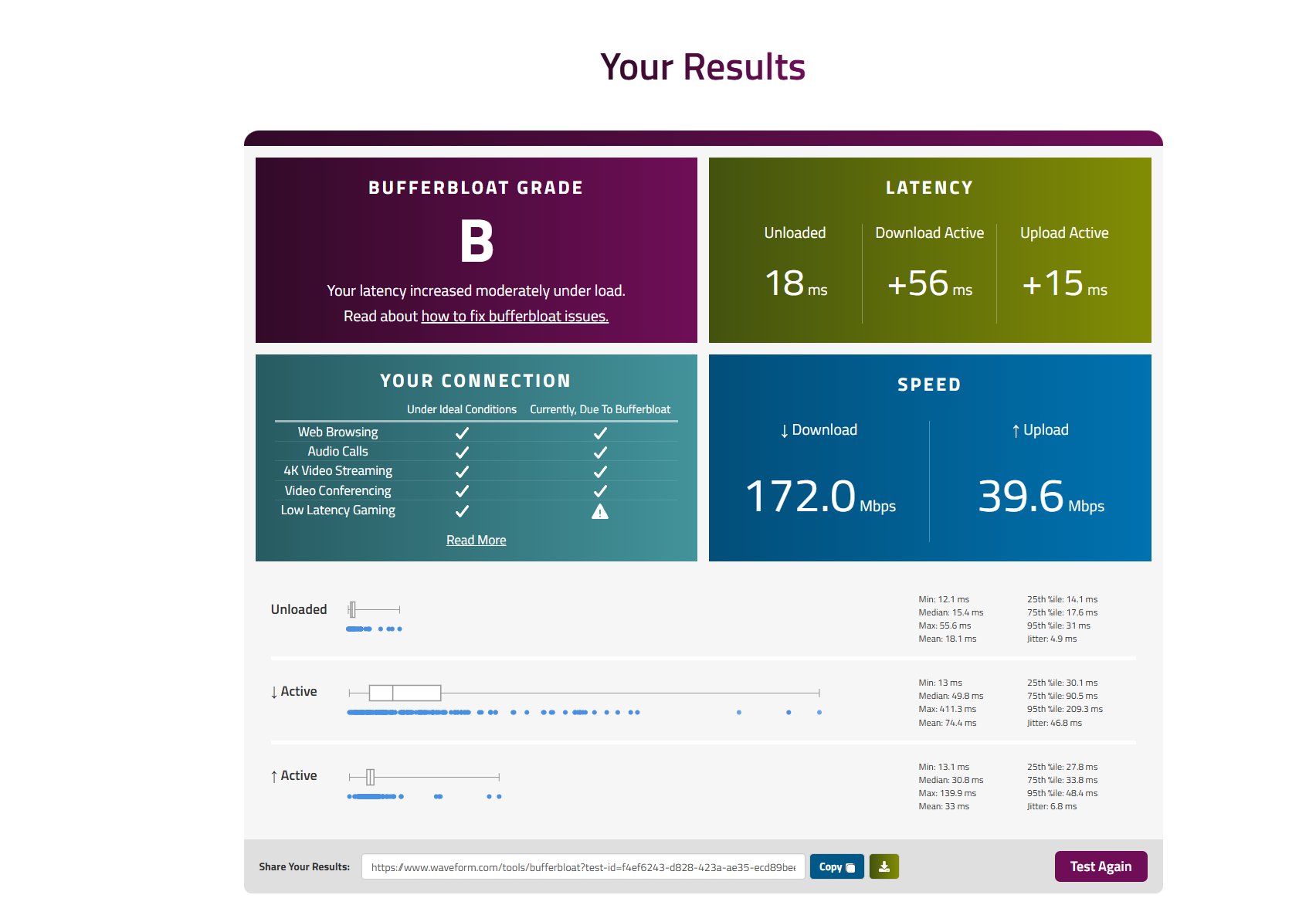
SQM config existed but was disabled and pointed at the wrong interface. The improvement from C to B was almost entirely from the Wi-Fi channel changes, not from SQM.
Attempt 2: Lowered download speed, still Grade B
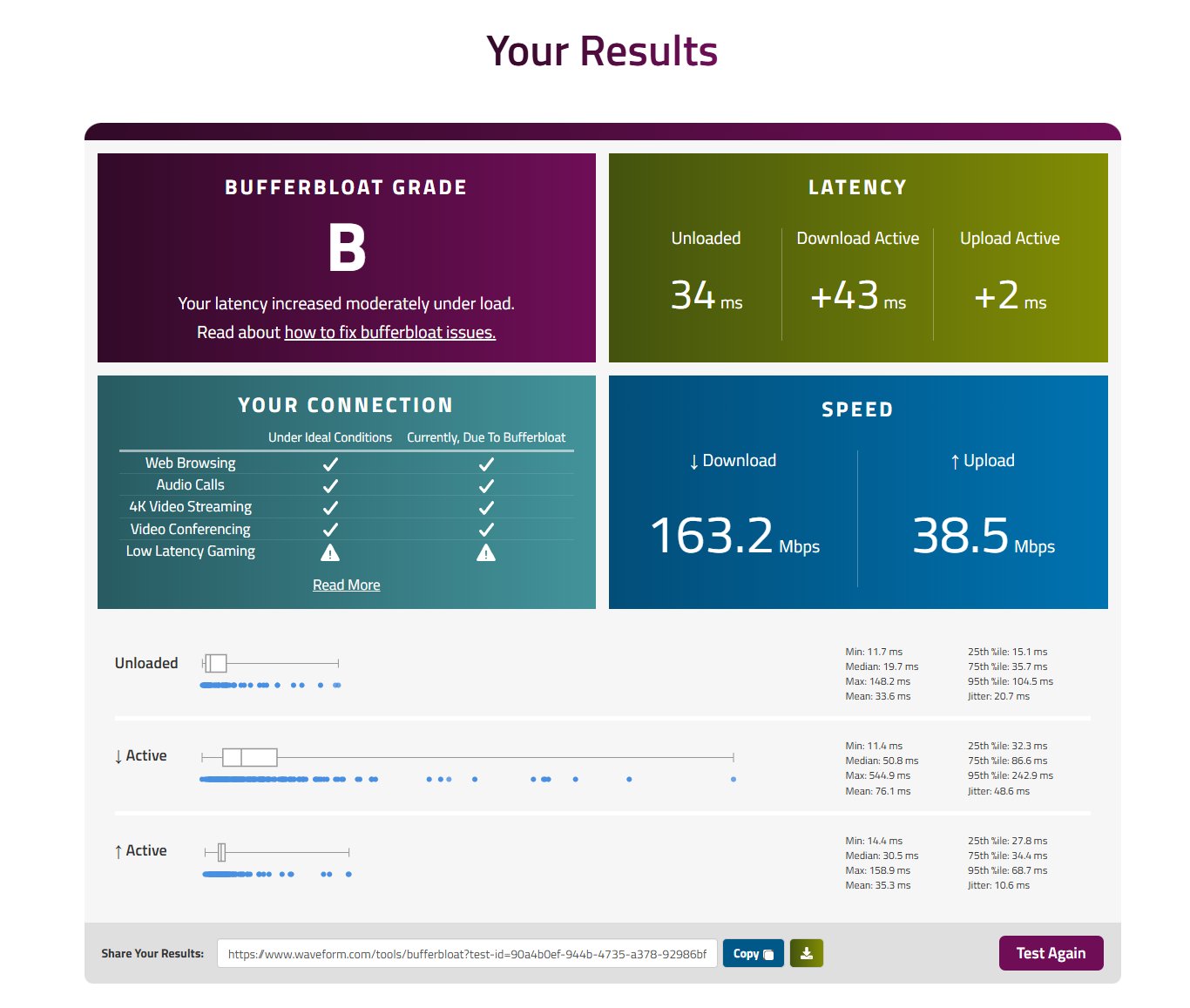
Attempt 3: Further tuning, Grade B with worse spikes
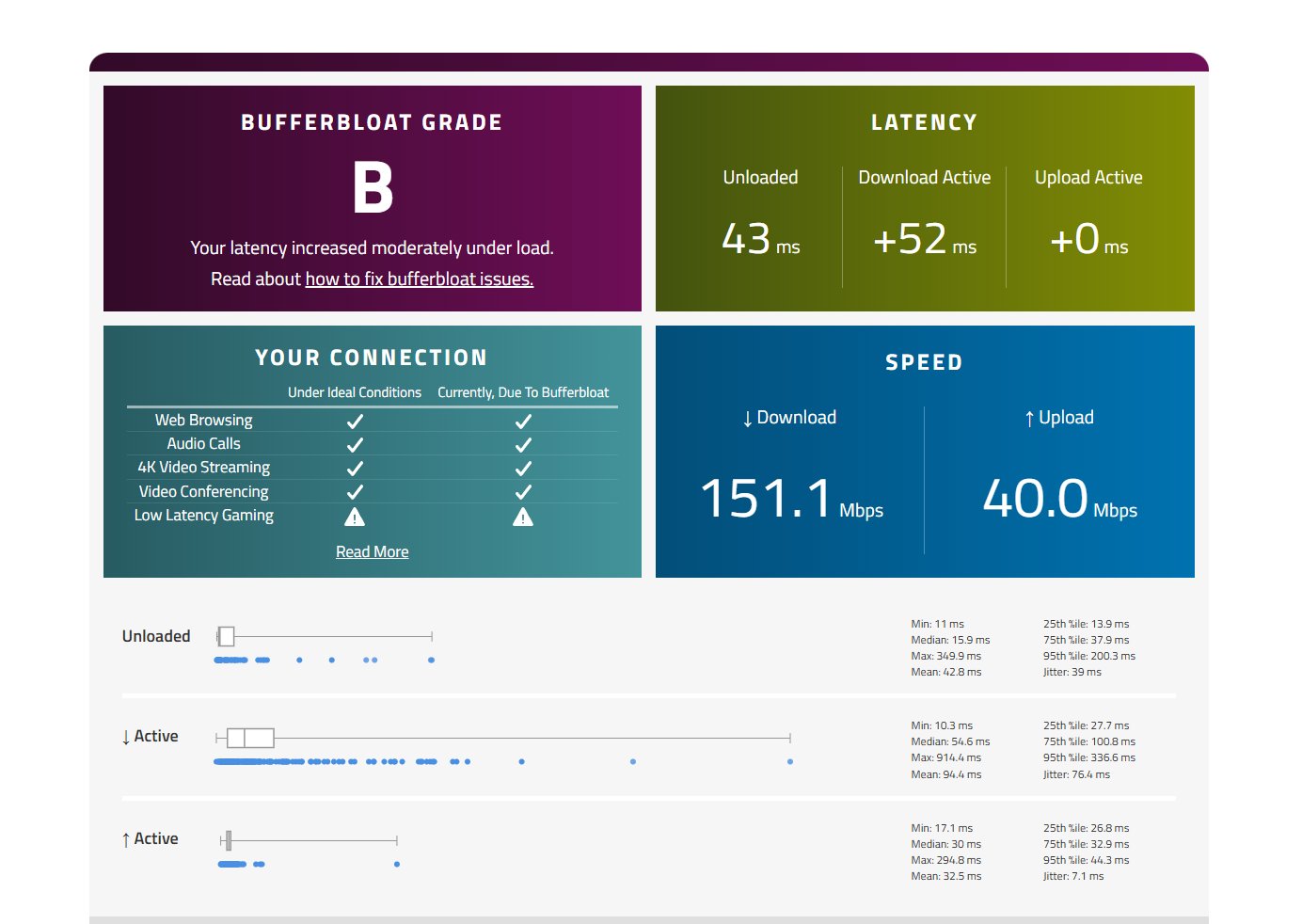
Max download spike hit 914ms. This wasn't a bufferbloat issue — this was Wi-Fi instability layered on top, masquerading as a bufferbloat problem and confusing the diagnosis.
Attempt 4: SQM actually enabled and working — Grade A on 2.4 GHz
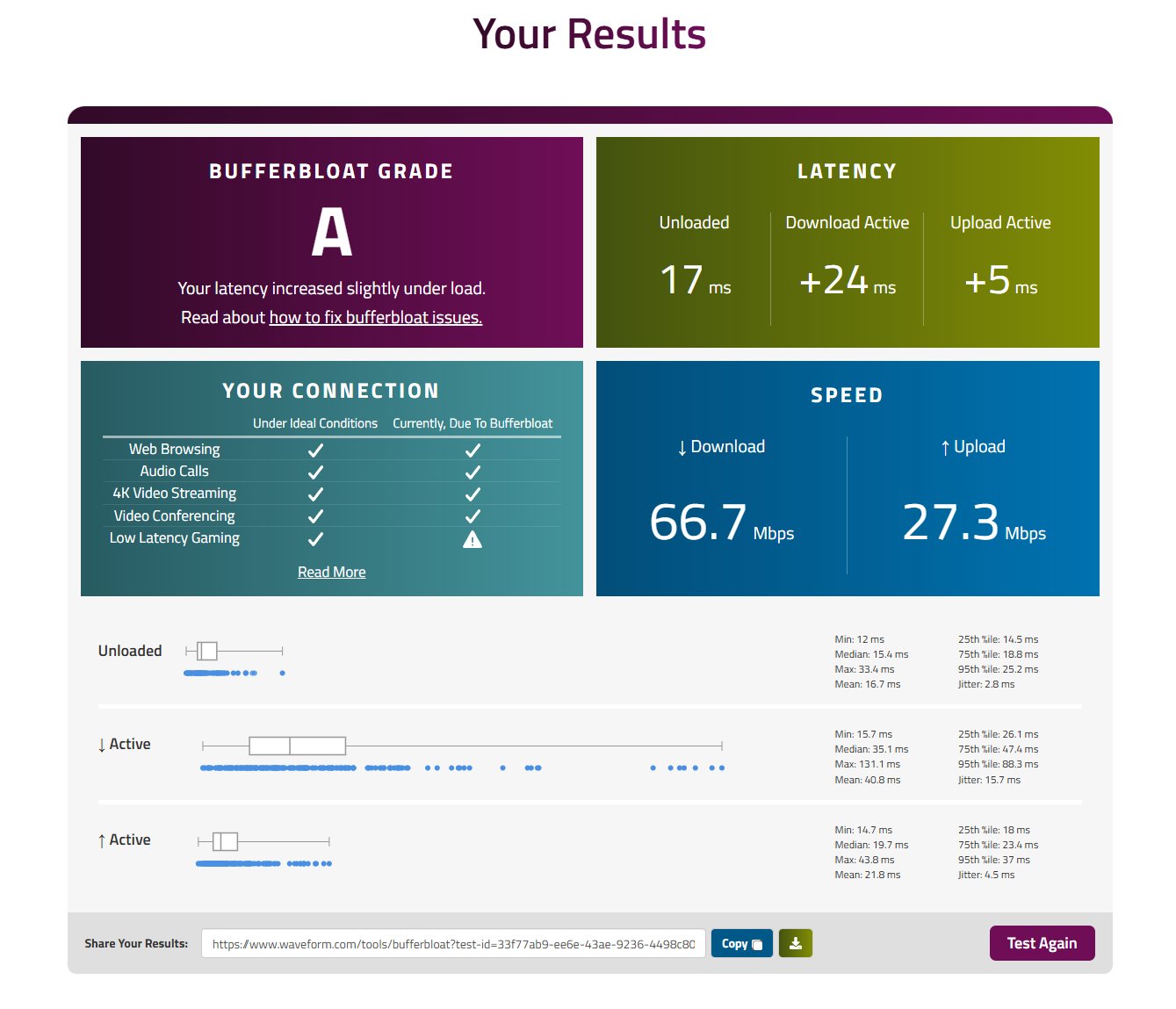
The moment I fixed the SQM config (enabled it, corrected the interface name), the test immediately returned Grade A. This is the difference between "configured" and "running."
Attempt 5: Final result — Grade A on 5 GHz
5 GHz gave better latency than 2.4 GHz despite the weaker signal. This is the final configuration.
Final Results
| Metric | Before | After | Improvement |
|---|---|---|---|
| Bufferbloat Grade | C | A | +2 grades |
| Download Latency (loaded) | +78ms | +14ms | 82% better |
| Upload Latency (loaded) | +14ms | +4ms | 71% better |
| Max Download Spike | 374ms | 113ms | 70% better |
| Packet Loss | 12% | ~0% | Eliminated |
| Jitter (unloaded) | 7.3ms | 5.1ms | 30% better |
The gaming experience matches the numbers — no more random spikes, no more "did the server lag or did I lag" moments.
Tradeoffs and Limitations
Speed Reduction
Total throughput is capped at ~72 Mbps because the A7's single-core 720MHz CPU (QCA9558) is the bottleneck under CAKE processing. During speed tests, CPU load hits 1.99+ with 52% spent in software interrupts (sirq).
For my use case this is fine: gaming needs less than 10 Mbps, 4K streaming needs ~25 Mbps, general browsing is irrelevant. It's not ideal if you regularly need to pull down large files at full ISP speed, but I'd rather have low-latency 72 Mbps than unstable 220 Mbps.
SQM Toggle
If I do need full ISP speed temporarily, SQM can be toggled via SSH:
# Enable
/etc/init.d/sqm start

# Disable (restores full ISP speed)
/etc/init.d/sqm stop
Remaining Wi-Fi Limitations
The PC is still at -62 dBm on 5 GHz. Occasional Wi-Fi-related outlier spikes remain (max 113ms vs typical 30ms). The fix would be a USB Wi-Fi adapter on an extension cable placed on top of the desk instead of under it. That's a future project.
Future Upgrade Path
If I ever want full ISP speed and SQM, the A7 needs to be replaced with something that has a faster CPU:
- Raspberry Pi 4/5 (~$50–80) — handles SQM at 500+ Mbps
- Mini PC with dual ethernet (N100-based, ~$100–150) — handles gigabit+ SQM, future-proof
- Firewalla Gold (~$400) — plug-and-play, zero config
Any of these would replace the A7 in the same position — between the modem and the BE600.
Key Lessons
- Bufferbloat is the #1 gaming lag culprit that most people don't know about. A fast connection with bufferbloat feels worse than a slower connection without it. Median ping looks fine; the spikes are what kill you.
- Stock router QoS is often broken or insufficient. TP-Link's newer routers have a known QoS bug that makes bufferbloat worse when enabled. I wasted time assuming the QoS settings would help.
- SQM/CAKE is the real fix for bufferbloat. It requires OpenWrt or a device that supports proper queue management. There's no shortcut.
- Old routers make great SQM devices. A $30 used router running OpenWrt can transform your network quality. I literally had the solution in a drawer.
- Wi-Fi optimization matters too. Use non-overlapping channels (1/6/11 on 2.4 GHz), avoid DFS channels on 5 GHz for gaming, set appropriate channel widths (80 MHz on 5 GHz, 20 MHz on 2.4 GHz).
- Always verify your fixes are actually working. SQM was configured but not running because of a wrong interface name and a disabled flag. Checking with
tc -s qdisc showcaught it. Trust the underlying tools, not the web UI. - Test methodically. Ping the router first (Wi-Fi), then ping external (full path), then traceroute (routing), then bufferbloat test (under load). Each step isolates a different layer. If you skip ahead, you "fix" the wrong thing.
Tools Used
ping -n 100 <target>— basic latency and packet loss testingtracert -d <target>— routing path analysisnetsh wlan show interfaces— Wi-Fi signal strength and connection detailsnetsh wlan show networks mode=bssid— neighboring network scan for channel planningnetstat -b -n | findstr ESTABLISHED— active connection audit- Waveform Bufferbloat Test — comprehensive bufferbloat grading
- Speedtest.net / Meter.net — speed testing
tc -s qdisc show— verify SQM/CAKE is active on OpenWrtuci show sqm— view SQM configuration on OpenWrttop/cat /proc/loadavg— CPU utilization monitoring
The whole project took an evening end-to-end. Most of that was OpenWrt troubleshooting (the SSL clock issue and the silent-broken SQM config), not actual setup. If I were doing it again knowing what I know now, it'd be under an hour.